



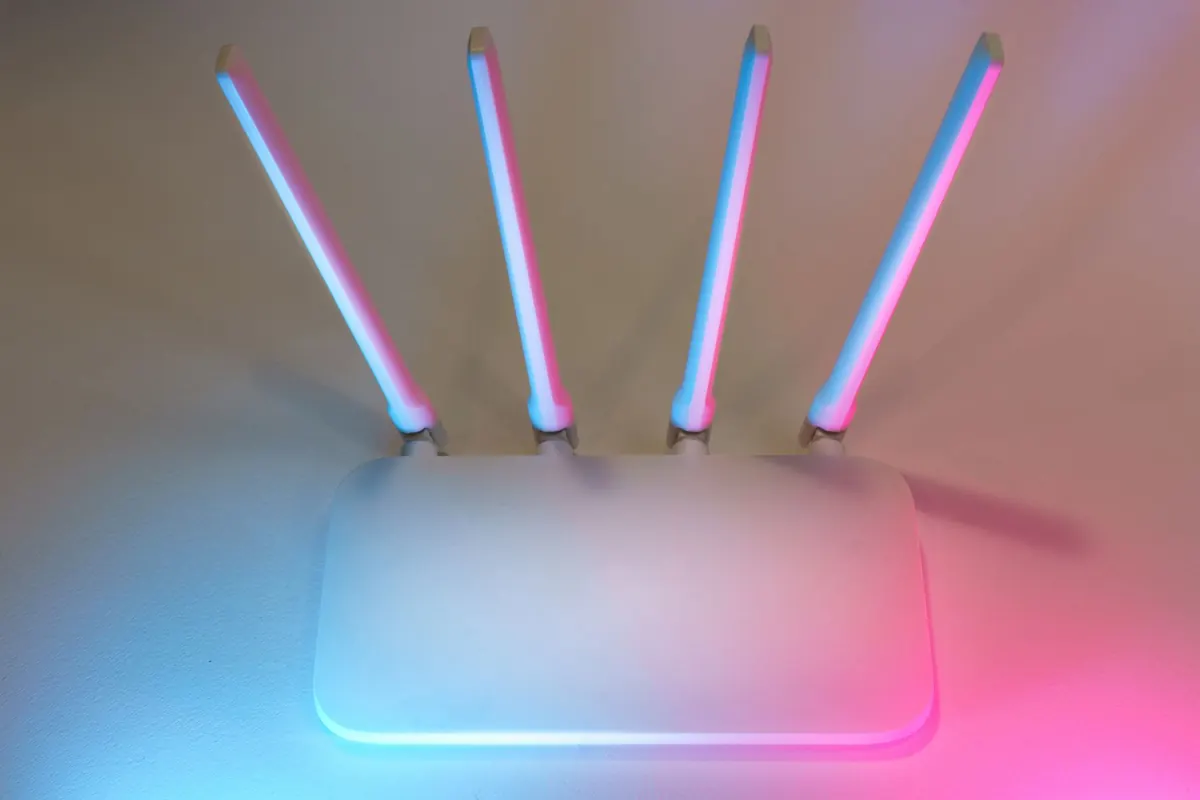
A firewall used to live in a rack in a server room. Now the most valuable network you own sits in a spare bedroom, and it holds client files, payroll spreadsheets and a work laptop that can reach your employer's internal systems. The firewall built into your ISP router does something useful, but it mostly does one thing: it blocks unsolicited connections from the internet. That is a start. It is not a plan.
What follows is the version of this project that actually gets finished on a Saturday. You will inventory what is on your network, pick a device that fits it, plug it in the right place, and write a short list of rules that separate your work life from your smart doorbell. You do not need to become a network engineer. You do need a spare ethernet cable and the patience to break your own internet connection once or twice.
Start With an Honest Inventory
Before you buy anything, write down every device that touches your home network. Work laptop, personal phone, printer, NAS, smart TV, cameras, doorbell, thermostat, the tablet your kid uses for school. Then ask one question about the whole list: which of these should be able to talk to each other?
The honest answer is usually "almost none of them." Your doorbell has no business reaching your work laptop. Your guest's phone has no business reaching your printer. Most home networks are flat, which means every device can reach every other device, and one compromised gadget becomes a door into everything else.
That gap is where a firewall earns its place. Not because attackers are knocking on your front door, but because cheap devices get abandoned by their manufacturers, stop receiving patches, and quietly keep talking to the internet for years.
Choosing a Firewall for a Home Office
There are three realistic routes, and none of them is wrong.
- Use the router you already own. Free, nothing new to install, and better than nothing. The trade-offs are real: limited rule options, infrequent firmware updates, and often no support for separate network segments.
- Buy a dedicated appliance. Products such as Firewalla and Ubiquiti's UniFi gateways, along with small boxes running OPNsense, give you a proper rule engine, sensible apps, regular updates and per-device visibility. For most home offices this is the sweet spot.
- Build your own. OPNsense or pfSense on a small mini PC with two network ports. The most control and the most configurability per dollar spent, but you are the support desk.
What to check on the spec sheet
- At least two ethernet ports, clearly labelled WAN and LAN.
- Support for VLANs or network segments, so you can isolate devices.
- Rules that can target a single device or a group, not just whole subnets.
- Readable logs. If you cannot see what was blocked, you cannot fix anything.
- Automatic security updates, or at least an update button that works.
If you handle regulated client data, check with your employer or compliance contact before you change the network path your work laptop uses. Reconfiguring a home network can conflict with a remote-work policy.
Wiring It In: Placement Matters
A firewall only filters traffic that passes through it. Put it in the wrong spot and you have built an expensive paperweight.
The correct order is: internet connection, then modem, then the firewall's WAN port, then the firewall's LAN port, then your switch and wireless access point. Everything on your side of the firewall is the protected network.
Two common snags. First, many ISPs ship a combined modem and router, so you have two devices doing the same job. Either put that unit into bridge mode, or place your firewall in its DMZ and turn off its Wi-Fi so you are not running two competing wireless networks. Second, do this on a day when nobody needs the internet for a call. Have your ISP's support number open in a browser tab on your phone's cellular connection.
First Boot: The Settings That Matter
- Update the firmware before you configure anything else. A brand-new device can still ship with months-old software.
- Change the admin password and disable remote administration from the internet side.
- Choose a LAN subnet that will not clash with the network your work VPN hands out. Something like 192.168.20.0/24 is usually safe.
- Enable automatic updates if the platform offers them.
- Create a guest network now, while you are already in the interface. It takes two minutes and you will use it constantly.
- Turn on logging, especially DNS logging. It is the fastest way to spot a misbehaving device later.
Writing Your First Rules
Almost every firewall works on the same principle: block inbound by default, allow outbound by default, then carve out exceptions. Start from that baseline and add rules one at a time, testing after each change. On most platforms rules are read top to bottom and the first match wins, so order matters.
A practical starter set for a home office:
- Block all inbound traffic from the internet. This is the default on most appliances, but confirm it rather than assuming.
- Force DNS through your chosen resolver. Allow port 53 only to that resolver, and block it everywhere else. This stops devices from quietly using their own DNS servers.
- Isolate smart devices. Cameras, plugs and doorbells get internet access and nothing else. No route to your laptop or NAS.
- Keep the work laptop out of the fun network. It gets internet access and its corporate VPN, and stays away from guest and smart-device segments.
- Give guests internet only. No local network access at all.
- Restrict the NAS. Allow file access only from the specific devices that need it.
- Turn on outbound threat filtering if your platform includes it. It catches connections to known malicious addresses.
Write a one-line note next to each rule explaining why it exists. Six months from now, an unexplained rule is one you will be afraid to delete.
Testing and Maintaining Your Setup
Verification is the step people skip. From a device on the guest network, try to reach your printer or NAS. You should fail. From a phone on cellular data, try to reach your home IP address on a few common ports. You should get nothing back.
Then check the logs and confirm you can still see normal traffic flowing. Keep a local console or physical access method available so a bad rule cannot lock you out entirely.
After that, the routine is short. Once a month, install updates and skim the device list for anything you do not recognise. Once a quarter, reread your rules and delete what you no longer need. When you bring home a new gadget, decide which segment it belongs to before you connect it, not after.
What a Firewall Will Not Do
A firewall is one layer, and treating it as the only one is how people end up disappointed. It will not patch the vulnerabilities in the camera firmware. It will not stop you from clicking a convincing invoice attachment. It will not replace multi-factor authentication, a password manager or a backup you have actually restored from once to prove it works.
So keep the firewall project in proportion. Spend one afternoon on the setup, then put the same effort into updates and backups, which are less interesting but cover far more of the ways a home office actually gets into trouble. If your work involves regulated data or contractual security obligations, ask your employer or a qualified adviser what your setup is required to meet before you rely on it.
Photo: Jakub Zerdzicki / Pexels